

Welcome to the world of data synchronization, where accuracy, consistency, and efficiency reign supreme. Have you ever wondered how devices seamlessly share information in real-time, ensuring that everyone is on the same page? How can businesses maintain data integrity and prevent errors while managing vast amounts of data? Let’s dive into the fascinating realm of data synchronization and uncover the secrets behind this essential process.
Key Takeaways:
- Data synchronization is the process of keeping data consistent across multiple devices and systems.
- It ensures accuracy, security, and compliance, leading to successful team collaboration and customer experiences.
- Data synchronization is crucial for maintaining data integrity, preventing errors, and streamlining business operations.
- Tools like Talend Data Fabric help businesses implement and optimize the data synchronization process.
- Real-time data synchronization offers numerous benefits, including improved productivity, better decision-making, and enhanced customer experiences.
The Importance of Data Synchronization
Data synchronization has become increasingly important in today’s data-driven world. With the abundance of data available in the cloud, businesses need to ensure accuracy, consistency, and privacy of their data.
Data synchronization plays a crucial role in maintaining data quality and integrity, preventing errors, and complying with security and regulatory requirements. It ensures that all records are consistent, eliminating the risk of data discrepancies and ensuring reliable information for decision-making.
By implementing data synchronization, businesses can experience numerous benefits across their operations. Here are some key advantages:
- Improved Logistics and Transportation: Data synchronization enables the seamless flow of critical logistics and transportation information, ensuring efficient supply chain management, reducing delays, and improving overall operational performance.
- Enhanced Sales Team Productivity: Sales teams can access real-time customer data, enabling them to provide personalized and timely responses. This improves customer satisfaction, streamlines sales processes, and increases productivity.
- Optimized Order Management: Accurate and synchronized data helps in automating order and inventory management processes, reducing fulfillment errors, and providing a seamless experience for customers.
- Increased Invoice Accuracy: By synchronizing data between billing and accounting systems, businesses can minimize invoicing errors, ensure timely payments, and maintain healthy financial records.
- Streamlined Business Systems: Data synchronization facilitates the integration of various business systems, such as CRM, ERP, and marketing platforms, enabling smoother workflow and efficient data sharing across departments.
- Cost Efficiency: With accurate and consistent data, businesses can reduce costs associated with manual data entry, duplicate records, inventory discrepancies, and process inefficiencies.
- Improved Reputation Management: Data synchronization helps in maintaining accurate customer data, allowing businesses to deliver personalized experiences, build trust, and enhance their reputation in the market.
- Overall Data Accessibility: Data synchronization ensures that relevant information is readily available to authorized users, enabling faster and informed decision-making at all levels of the organization.
“Data synchronization is the key to unlocking the full potential of your data, enabling you to make data-driven decisions, improve operational efficiency, and better serve your customers.”
With the growing reliance on data to drive business success, the importance of data synchronization cannot be overstated. It lays the foundation for data integration, consistency, and reliability, enabling businesses to stay competitive in the digital landscape.
| Advantages of Data Synchronization |
|---|
| Improved Logistics and Transportation |
| Enhanced Sales Team Productivity |
| Optimized Order Management |
| Increased Invoice Accuracy |
| Streamlined Business Systems |
| Cost Efficiency |
| Improved Reputation Management |
| Overall Data Accessibility |
Exploring Data Synchronization Techniques
When it comes to data synchronization, there are various techniques and tools available to facilitate the process. These methods are designed to ensure the smooth and efficient synchronization of data between different devices and locations. By employing the right techniques and leveraging the appropriate tools, businesses can maintain data consistency and prevent duplication or loss of valuable information.
Some of the commonly used techniques for data synchronization include:
- File Synchronization: This technique ensures that two or more locations share the same data, preventing any duplication of files. It allows for the real-time syncing of files, ensuring that all parties have access to the latest versions.
- Version Control: Version control is particularly useful when multiple users work on the same files simultaneously. It enables synchronization by managing changes made by different users and ensuring that the latest version of the file is available to everyone.
- Distributed File Systems: Distributed file systems are designed to handle the synchronization of multiple file versions across different devices. This technique allows for seamless syncing, ensuring that all devices have access to the most up-to-date versions of files.
- Mirror Computing: Mirror computing involves creating an exact copy of a data set in another location. This technique enables high availability and data redundancy, ensuring that data is synchronized across multiple locations for backup or disaster recovery purposes.
Additionally, there are several data synchronization tools available in the market that can automate and streamline the synchronization process. These tools provide a range of features and functionalities to efficiently manage data synchronization, preventing errors and ensuring data integrity.
Benefits and Limitations of Data Synchronization Techniques
While data synchronization techniques offer several benefits, it’s important to consider their limitations as well. Here’s a comparison of the benefits and limitations of some common data synchronization techniques:
| Technique | Benefits | Limitations |
|---|---|---|
| File Synchronization | – Real-time syncing of files – Prevents file duplication |
– Limited to file-level synchronization – May require manual intervention |
| Version Control | – Manages changes made by multiple users – Ensures the availability of the latest file versions |
– Requires user collaboration and adherence to version control rules – Complexity increases with a large number of concurrent users |
| Distributed File Systems | – Syncs multiple file versions across devices – Enables seamless availability of latest file versions |
– Requires network connectivity and synchronization protocols – Complexity increases with a large number of devices and files |
| Mirror Computing | – Provides data redundancy and high availability – Enables backup and disaster recovery |
– Requires additional storage and infrastructure resources – Synchronization latency affects real-time data access |
“Data synchronization techniques play a crucial role in maintaining data consistency and preventing duplication or loss of valuable information.”
Understanding the various data synchronization techniques and utilizing the right tools can significantly enhance data management and ensure the accuracy and integrity of business information. By implementing these techniques effectively and considering their limitations, businesses can streamline their operations, improve data accessibility, and drive successful outcomes in today’s data-driven landscape.
Challenges of Data Synchronization
Data synchronization presents several challenges that businesses must address to ensure the secure and efficient transfer and integration of data. These challenges include:
- Security: Ensuring the secure transfer and storage of data is crucial. Businesses must implement robust security measures to prevent breaches and comply with privacy laws. This includes encryption, access control, and data protection protocols.
- Data Quality: Different systems may have varying data formats and structures, making it essential to carefully manage and integrate data for accurate synchronization. Data quality issues such as incomplete or inconsistent data can negatively impact the synchronization process and lead to errors.
- Real-Time Management: Managing data synchronization in real-time can be complex, requiring efficient processes and infrastructure. Businesses must ensure that the synchronization process is optimized to minimize latency and ensure data updates occur seamlessly across systems.
- Compatibility and Stability: As data complexity increases, compatibility and stability become critical for successful data synchronization. Ensuring that different systems can communicate and share data without conflicts is crucial for maintaining data integrity.
To overcome these challenges, businesses need to implement robust security measures, establish data quality management protocols, optimize real-time synchronization processes, and ensure compatibility and stability across systems.
| Challenges | Solutions |
|---|---|
| Security | Implement robust security measures, including encryption and access control, to protect data during transfer and storage. |
| Data Quality | Establish data quality management protocols to ensure accurate and consistent data across systems. |
| Real-Time Management | Optimize processes and infrastructure to manage data synchronization in real-time, minimizing latency and ensuring seamless updates. |
| Compatibility and Stability | Ensure compatibility and stability between systems to maintain data integrity and prevent conflicts during synchronization. |
The Role of Data Synchronization in Solving Data Discrepancies
Data synchronization plays a vital role in solving data discrepancies between systems. When different applications or departments view the same set of data, manual data entry can lead to errors and discrepancies. By implementing data synchronization, businesses can ensure that the data across their apps is consistent and accurate. Changes made in the source system are automatically updated in downstream systems, preventing data inconsistencies and ensuring that all teams have access to the most up-to-date information. This reduces misalignment, improves decision-making, and prevents inaccuracies in business-critical reports.
For example, let’s consider a scenario where a sales team and a finance team are both accessing the same customer data but are using separate databases. Without data synchronization, any changes made by the sales team in their database may not reflect in the finance team’s database, leading to data discrepancies. This can result in inaccurate financial reports, delayed invoice processing, and miscommunication between teams. However, by implementing data synchronization, any changes made in the sales team’s database are automatically reflected in the finance team’s database, ensuring that both teams have access to the same accurate information.
Benefits of Data Synchronization in Solving Data Discrepancies:
1. Consistency and Accuracy: Data synchronization ensures that data discrepancies are minimized, and all systems have access to the same consistent and accurate information.
2. Real-time Updates: Changes made in the source system are instantly propagated to downstream systems, providing real-time updates and eliminating delays caused by manual data entry.
3. Improved Decision-Making: With synchronized data, teams can make informed decisions based on up-to-date, reliable information.
4. Enhanced Collaboration: Data synchronization facilitates collaboration between departments by ensuring that everyone is working with the same accurate data.
5. Streamlined Processes: By automating data synchronization, businesses can streamline their processes, reduce manual efforts, and improve overall efficiency.
By utilizing data synchronization techniques and tools, businesses can overcome data discrepancies and ensure that their systems are aligned, accurate, and consistent. Through real-time updates and automated processes, data synchronization plays a crucial role in maintaining data integrity and driving the success of businesses in today’s data-driven world.
| Data Discrepancies | Solving Data Discrepancies through Data Synchronization | |
|---|---|---|
| Definition | Errors and discrepancies that occur when different systems have inconsistent or outdated data | The process of updating changes automatically across systems to ensure consistency and accuracy |
| Causes | Manual data entry, outdated data sources, lack of synchronization | Real-time updates, automated synchronization, consistent data sources |
| Impact | Inaccurate reports, miscommunications, delayed processes | Consistent data, improved decision-making, efficient processes |
| Benefits | – Ensures consistency and accuracy – Provides real-time updates – Enhances collaboration – Streamlines processes |
– Minimizes data discrepancies – Facilitates informed decision-making – Improves collaboration – Increases operational efficiency |
Key Takeaways:
- Data synchronization plays a vital role in solving data discrepancies between systems.
- By implementing data synchronization, businesses can ensure consistency and accuracy across their apps.
- Real-time updates and automated synchronization prevent data inconsistencies and improve decision-making.
- Data synchronization enhances collaboration and streamlines processes.
Implementing data synchronization enables businesses to overcome data discrepancies, ensuring accurate, reliable, and up-to-date information across all systems. By leveraging data synchronization tools and techniques, companies can achieve consistent data, streamline processes, and make well-informed decisions based on real-time information.
Implementation of Data Synchronization with Talend Data Fabric
Talend Data Fabric is a comprehensive suite of apps specifically designed for data integration and data integrity. It provides services for collecting, transforming, governing, and sharing data, ensuring data quality and delivering real-time results.
Implementing data synchronization with Talend Data Fabric offers an easy and efficient way to streamline your data synchronization process. Once set up according to your business specifications, it works automatically, day and night, ensuring accurate and consistent data across systems.
By utilizing Talend Data Fabric for data synchronization implementation, businesses can avoid delays, errors, and miscommunication caused by manual data entry. With its robust capabilities, Talend Data Fabric ensures the smooth operation of data synchronization, enhancing overall data management and system efficiency.
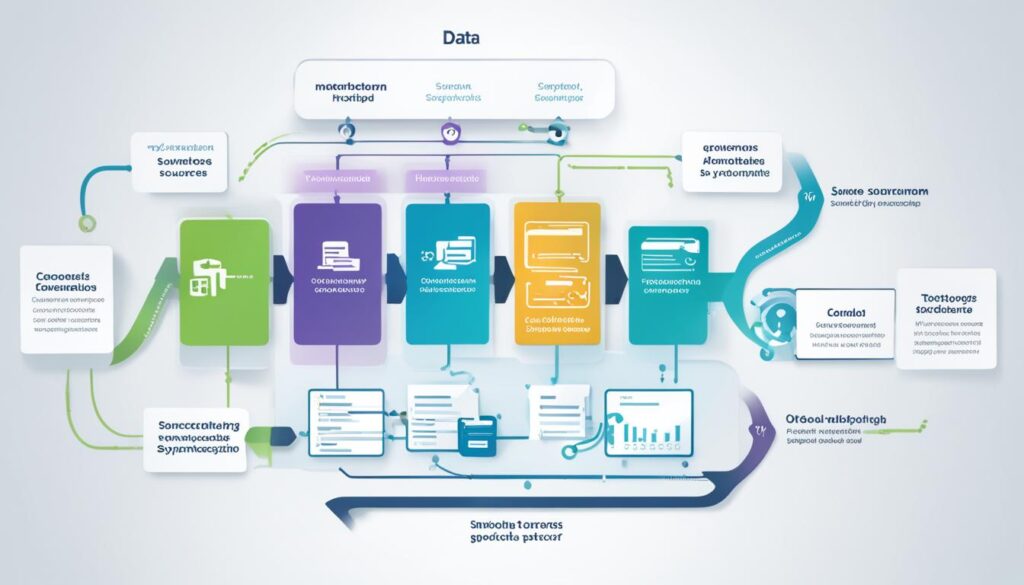
- Automated data synchronization
- Real-time data integrity
- Assured data quality
- Streamlined data integration
- Enhanced system performance
With Talend Data Fabric, you can leverage its powerful features and comprehensive capabilities to ensure accurate and consistent data synchronization across your systems. Say goodbye to manual data handling and embrace the efficiency and reliability that Talend Data Fabric brings to your data synchronization process.
Benefits of Real-Time Data Synchronization
Real-time data synchronization offers substantial advantages to businesses. With this capability, employees can access up-to-date information within their work applications, eliminating the need for manual data requests and significantly improving productivity. The elimination of manual data entry also reduces the risk of human errors, thus ensuring data quality across systems.
In addition, real-time synchronization enhances the accuracy and consistency of data by ensuring that changes made in one system are immediately reflected in others. This fosters effective collaboration between teams, facilitates faster issue resolution, and enables better decision-making based on the most accurate and current information.
By implementing real-time data synchronization, businesses can gain the following benefits:
- Improved productivity by eliminating manual data requests and entry.
- Enhanced data quality and integrity by reducing human errors.
- Accurate and consistent data across multiple systems.
- Effective collaboration between teams.
- Faster issue resolution.
- Improved decision-making based on real-time information.
By keeping data synchronized in real-time, businesses can respond promptly to customer needs, optimize their processes, and gain a competitive advantage in the market.
Overcoming Challenges in Data Synchronization
Overcoming data synchronization challenges requires a strategic approach and careful implementation. By addressing these challenges head-on, businesses can achieve successful data synchronization and unlock its full potential.
1. Scalability Issues
Data synchronization can become challenging as the volume of data increases or when attempting to synchronize data across a large number of devices or systems. To overcome scalability issues, businesses should consider using scalable solutions and involving the right resources. Scalable solutions can handle larger data sets efficiently, ensuring smooth synchronization even as data volumes grow. Additionally, involving the right resources, such as experienced data synchronization professionals or adopting automated synchronization tools, can help streamline the process and ensure scalability.
2. Security Risks
Ensuring data security is crucial when synchronizing data across multiple devices or systems. Businesses must implement proper encryption and access control measures to mitigate security risks. The encryption of data during transit and at rest ensures that sensitive information remains protected, minimizing the chances of unauthorized access or data breaches. Additionally, access control measures, such as user authentication and authorization, can restrict data access only to authorized individuals or systems, further enhancing security.
3. Data Quality Challenges
Different systems often have varying data formats and structures, making data integration and synchronization complex. Businesses can overcome data quality challenges by implementing robust data validation and cleaning processes. These processes involve identifying and rectifying data inconsistencies, errors, or duplicates, ensuring that synchronized data is accurate and reliable. By maintaining data integrity throughout the synchronization process, businesses can avoid data discrepancies and achieve a single source of truth for their data.
4. Performance Optimization
Optimizing the performance of the data synchronization process is essential to ensure timely and efficient synchronization. This involves careful execution of all steps involved, including data extraction, transfer, transformation, and load. By leveraging efficient data synchronization tools or platforms, businesses can streamline these steps and optimize performance. Reducing data transfer latency, optimizing data transformation processes, and ensuring seamless data loading can significantly enhance the overall performance of data synchronization.
By overcoming these challenges, businesses can achieve successful data synchronization, enabling them to maintain data accuracy, improve operational efficiency, and make informed business decisions.
| Challenges | Strategies |
|---|---|
| Scalability Issues | Use scalable solutions and involve the right resources. |
| Security Risks | Implement proper encryption and access control measures. |
| Data Quality Challenges | Implement data validation and cleaning processes. |
| Performance Optimization | Carefully execute all steps in the synchronization process. |
Future Trends in Data Synchronization
The field of data synchronization is continuously evolving, driven by advancements in technology and the increasing need for seamless data integration. As businesses embrace digital transformation and strive to optimize their data management strategies, it is essential to stay informed about the future trends in data synchronization.
Artificial Intelligence and Machine Learning Automation
One of the most noteworthy trends in data synchronization is the adoption of artificial intelligence (AI) and machine learning (ML) techniques to automate and improve the synchronization process. AI and ML algorithms can analyze data patterns, identify changes, and synchronize data between multiple devices or systems in real-time. This automation not only saves time and resources but also reduces the chances of human error.
Blockchain Technology for Secure and Transparent Synchronization
Another significant trend in data synchronization is the use of blockchain technology. Blockchain provides a decentralized and secure method for synchronizing data across multiple parties. By leveraging the principles of transparency, immutability, and cryptographic security, blockchain ensures data integrity and builds trust among participants. This trend is particularly relevant in industries where data privacy and security are paramount, such as finance, healthcare, and supply chain management.
Advancements in Cloud and Edge Computing
Advancements in cloud and edge computing are also driving future trends in data synchronization. Cloud-based synchronization solutions offer scalability, flexibility, and accessibility, allowing businesses to synchronize data seamlessly across different locations and devices. Edge computing, on the other hand, enables real-time synchronization by processing data closer to the source, reducing latency and enhancing performance.
The future of data synchronization lies in leveraging these emerging technologies and trends to enable seamless data integration across devices and platforms. By staying on top of these developments, businesses can enhance data management, improve operational efficiency, and unlock valuable insights to gain a competitive edge.
| Trend | Description |
|---|---|
| Artificial Intelligence and Machine Learning Automation | Adoption of AI and ML techniques to automate and improve data synchronization. |
| Blockchain Technology | Use of blockchain for secure and transparent data synchronization. |
| Advancements in Cloud and Edge Computing | Utilizing cloud and edge computing to enable real-time synchronization. |
Conclusion
In conclusion, data synchronization is an essential process for businesses to maintain data integrity and ensure consistency across different systems. By synchronizing data between devices, businesses can achieve improved productivity, make better-informed decisions, and provide enhanced experiences for their customers. While data synchronization may come with its own set of challenges, solutions like Talend Data Fabric simplify the implementation process and offer real-time synchronization.
The future of data synchronization looks promising, with emerging trends such as artificial intelligence (AI), blockchain, and cloud computing playing significant roles. AI and machine learning techniques can automate and enhance the synchronization process, while blockchain technology ensures secure and transparent data synchronization. Advancements in cloud and edge computing enable real-time synchronization on a larger scale.
By embracing data synchronization and staying updated with the latest technological advancements, businesses can unlock the full potential of their data and gain a competitive advantage in the digital landscape. With the ability to maintain data integrity, improve operational efficiency, and deliver seamless customer experiences, data synchronization is undoubtedly a crucial component for the success of modern businesses.
FAQ
What is data synchronization?
Data synchronization is the ongoing process of synchronizing data between two or more devices and updating changes automatically between them to maintain consistency within systems.
What is the importance of data synchronization?
Data synchronization is crucial for maintaining data integrity, preventing errors, and ensuring that all records are consistent. It also helps businesses streamline operations, enhance efficiency, and comply with security and regulatory requirements.
What techniques and tools are used for data synchronization?
Common techniques include file synchronization, version control, distributed file systems, and mirror computing. Various data synchronization tools are available in the market to facilitate the synchronization process.
What are the challenges of data synchronization?
Challenges in data synchronization include security concerns, data quality management, real-time synchronization complexities, and ensuring compatibility and stability.
What is the role of data synchronization in solving data discrepancies?
Data synchronization ensures that data across different applications or departments is consistent and accurate. It prevents manual data entry errors and discrepancies and improves decision-making and data accuracy.
How can Talend Data Fabric help with data synchronization implementation?
Talend Data Fabric is a comprehensive suite of apps designed for data integration and data integrity. It simplifies the data synchronization process, ensuring accurate and consistent data across systems.
What are the benefits of real-time data synchronization?
Real-time data synchronization improves productivity, data accuracy, collaboration between teams, issue resolution, and decision-making. It allows businesses to respond quickly to customer needs and achieve a competitive edge.
How can businesses overcome challenges in data synchronization?
By planning and implementing scalable solutions, addressing security risks, ensuring data quality through validation and cleaning processes, and optimizing the entire synchronization process, businesses can overcome data synchronization challenges.
What are the future trends in data synchronization?
Future trends include the adoption of AI and machine learning techniques, the use of blockchain for secure synchronization, and advancements in cloud and edge computing for real-time synchronization on a larger scale.
What is the conclusion about data synchronization?
Data synchronization is critical for maintaining data integrity and consistency, improving productivity, decision-making, and customer experiences. By embracing data synchronization, businesses can unlock the full potential of their data and gain a competitive advantage.